AADSTS53000: Device is not in required device state: compliant. Conditional Access policy requires a compliant device, and the device is not compliant. The user must enroll their device with an approved MDM provider like Intune
Error: AADSTS53000: Device is not in required device state: compliant. Conditional Access policy requires a compliant device, and the device is not compliant. The user must enroll their device with an approved MDM provider like Intune
If you’ve received error, it means the tenant has a conditional access policy that only allows compliant devices — and the service provider account is not treated as compliant.
This can be in a customer tenant, or it could be your Partner Tenant. If the reference is for your Delegated Admin/Partner email
Cause: This typically occurs when Conditional Access policies require compliant devices, but the Sync 365 account is not covered by an exclusion, or the delegated Admin/Partner account is not compliant.
How to Identify the Policy
- Login to the customer's Azure portal (or your portal if for delegated admin)
- Open Microsoft Entra ID (Azure AD)
- Go to Users → Sign-in logs
- Select User sign-ins (non-interactive)
- Filter by application name "Sync 365 License"
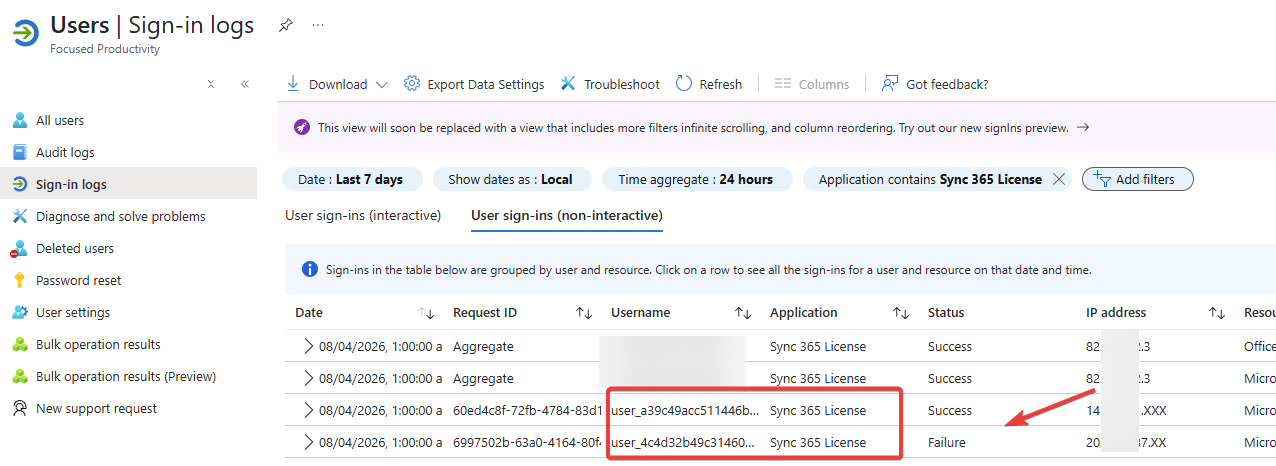
- Click into the failed sign-in
- Click Conditional Access policy to see any applied.
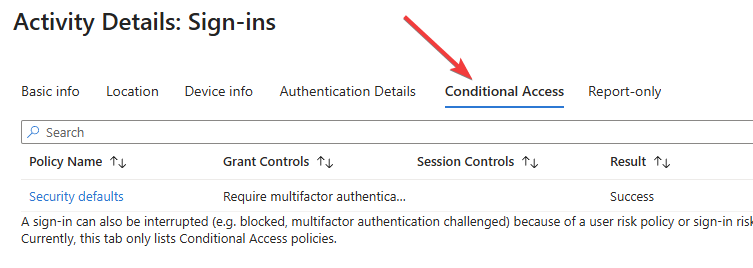
- Look for one with a Blocked Result to find the one that is blocking it.
Resolution
To resolve this issue, you can exclude the service provider account from the Conditional Access policy. See full guidance here: Conditional Access Policies
- Login to the customer’s Microsoft Entra ID portal
- Go to Conditional Access → Policies
- Identify the policy blocking access in the Sign-in logs
- Edit the policy and make the following changes:
- In the Users section, click Exclude → select "Service provider users"
- All: excludes all service providers with tenant relationships
- Select: allows you to specify specific tenant IDs — be sure to enter your tenant ID
- If this is your Partner Tenant, you may need to exclude the Account being used in Sync 365 from the CA policy.
- Save the policy and retry the connection in Sync 365