Adding an AzureAD Application
NOTE: Preferred method is using Grant Partner Center Consent
To access your customer tenants and automate your license billing, we need to create an AzureAD Application in your Partner tenant.
This is compatible with Delegated Admin Permissions and Granular Delegated Admin Permissions for Partners.
The permissions we need access to are as follows:
- Microsoft Graph
- Global Reader (delegated permission)
- Offline Access
- Microsoft Partner Center
- user_impersonation (delegated permission)
- user_impersonation (delegated permission)
- Azure service management
Requirements
Minimum GDAP Permissions
- Global Reader
- Application Administrator (to provide consent to this application to your customer tenants)
- You will need to log in as a Global Admin account of your Microsoft Tenant
- Creating the app and granting consent
- You will need the AzureAD Powershell module or run the script as administrator and the script will install the module
Creating the Application
We have created a simple powershell script to automatically create the application. This will add the application with the relevant permissions and give you the details required for the Sync 365 License Application.
- Copy the below script into either Powershell or notepad
- Save the file as s365lapp.ps1
- Either right click the saved file and run with powershell, or run it from a powershell window with ./s365lapp.ps1 (in the directory of the saved file).
- Record your Tenant ID, Application ID and Client Secret.
- Log into Sync 365 License
- Click on “Company”
- Click the Delegated Admin tab
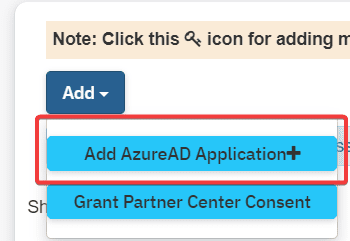
- Click the + and select Add Azure AD Application
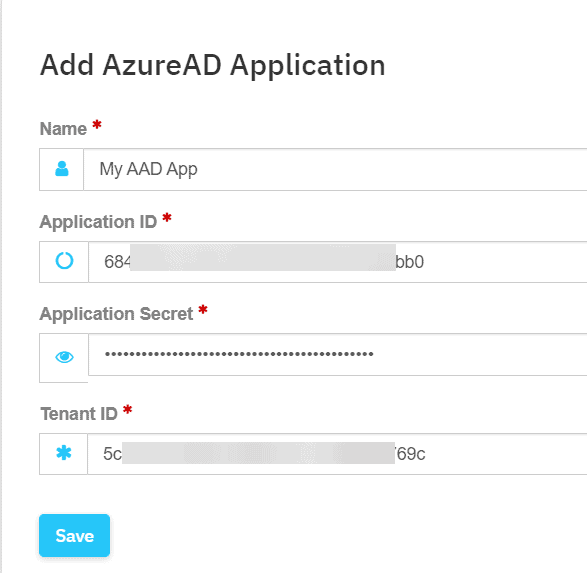
- Fill in the AzureAD Application details that you got from the script above
- Name: Whatever you like
- Application ID
- Application Secret
- Partner Tenant ID
- Click Save
- You will now be prompted to log into Microsoft and authorize the application
- Important: You must use a partner account that has been provided either GDAP with at least global reader permissions and application administrator, or DAP access to your tenants and the partner center. (See here for more GDAP information)
- Important: You must use a partner account that has been provided either GDAP with at least global reader permissions and application administrator, or DAP access to your tenants and the partner center. (See here for more GDAP information)
- Depending on the size of your customer list, this may take a few minutes to process all your tenants.
$ErrorActionPreference = "Stop"

# Check if the Azure AD PowerShell module has already been loaded.
if ( ! ( Get-Module AzureAD ) ) {
    # Check if the Azure AD PowerShell module is installed.
    if ( Get-Module -ListAvailable -Name AzureAD ) {
        # The Azure AD PowerShell module is not load and it is installed. This module
        # must be loaded for other operations performed by this script.
        Write-Host -ForegroundColor Green "Loading the Azure AD PowerShell module..."
        Import-Module AzureAD
    } else {
        Install-Module AzureAD
    }
}

if($DisplayName){
    $appname = $DisplayName
} else {
    $appname = "Sync 365 License"
}

try {
    Write-Host -ForegroundColor Green "When prompted please log in as a global administrator for your tenant"
    Connect-AzureAD | Out-Null

} catch [Microsoft.Azure.Common.Authentication.AadAuthenticationCanceledException] {
    # The authentication attempt was canceled by the end-user. Execution of the script should be halted.
    Write-Host -ForegroundColor Yellow "The authentication attempt was canceled. Execution of the script will be halted..."
    Exit
} catch {
    # An unexpected error has occurred. The end-user should be notified so that the appropriate action can be taken.
    Write-Error "An unexpected error has occurred. Please review the following error message and try again." `
        "$($Error[0].Exception)"
}

$graphAppAccess = [Microsoft.Open.AzureAD.Model.RequiredResourceAccess]@{
    ResourceAppId = "00000003-0000-0000-c000-000000000000"
    ResourceAccess = @(
        [Microsoft.Open.AzureAD.Model.ResourceAccess]@{
            Id   = "06da0dbc-49e2-44d2-8312-53f166ab848a"
            Type = "Scope"
        },
        [Microsoft.Open.AzureAD.Model.ResourceAccess]@{
            Id   = "8804798e-5934-4e30-8ce3-ef88257cecd4"
            Type = "Scope"
        },
        [Microsoft.Open.AzureAD.Model.ResourceAccess]@{
            Id   = "e1fe6dd8-ba31-4d61-89e7-88639da4683d"
            Type = "Scope"
        }
    )
}

$azureServiceManagementAccess = [Microsoft.Open.AzureAD.Model.RequiredResourceAccess]@{
    ResourceAppId = "797f4846-ba00-4fd7-ba43-dac1f8f63013"
    ResourceAccess = @(
        [Microsoft.Open.AzureAD.Model.ResourceAccess]@{
            Id   = "41094075-9dad-400e-a0bd-54e686782033"
            Type = "Scope"
        }
    )
}

$partnerCommerceAccess = [Microsoft.Open.AzureAD.Model.RequiredResourceAccess]@{
    ResourceAppId = "4990cffe-04e8-4e8b-808a-1175604b879f"
    ResourceAccess = @(
        [Microsoft.Open.AzureAD.Model.ResourceAccess]@{
            Id   = "eabf9ef3-1f9e-f3da-19a1-bcd60d080567"
            Type = "Scope"
        }
    )
}

$additionalMicrosoftApiAccess = [Microsoft.Open.AzureAD.Model.RequiredResourceAccess]@{
    ResourceAppId = "fabfbdc4-5751-471c-ac43-3826fa1afc31"
    ResourceAccess = @(
        [Microsoft.Open.AzureAD.Model.ResourceAccess]@{
            Id   = "19100071-af88-4383-aab5-a3f43a437f30"
            Type = "Scope"
        }
    )
}

$partnerCenterAppAccess = [Microsoft.Open.AzureAD.Model.RequiredResourceAccess]@{
    ResourceAppId = "fa3d9a0c-3fb0-42cc-9193-47c7ecd2edbd"
    ResourceAccess = @(
        [Microsoft.Open.AzureAD.Model.ResourceAccess]@{
            Id   = "1cebfa2a-fb4d-419e-b5f9-839b4383e05a"
            Type = "Scope"
        }
    )
}

$requiredResourceAccess = @(
    $graphAppAccess,
    $azureServiceManagementAccess,
    $partnerCommerceAccess,
    $additionalMicrosoftApiAccess,
    $partnerCenterAppAccess
)

$SessionInfo = Get-AzureADCurrentSessionInfo

Write-Host -ForegroundColor Green "Creating the Azure AD application and related resources..."

$app = New-AzureADApplication `
    -AvailableToOtherTenants $true `
    -DisplayName $appname `
    -IdentifierUris "https://$($SessionInfo.TenantDomain)/$((New-Guid).ToString())" `
    -RequiredResourceAccess $requiredResourceAccess `
    -ReplyUrls @("urn:ietf:wg:oauth:2.0:oob", "https://sync.s365l.com", "https://beta.s365l.com", "https://portal.s365l.com")

$startDate = Get-Date
$endDate = $startDate.AddYears(99)
$password = New-AzureADApplicationPasswordCredential -ObjectId $app.ObjectId -CustomKeyIdentifier "S365LApp" -StartDate $startDate -EndDate $endDate
$spn = New-AzureADServicePrincipal -AppId $app.AppId -DisplayName $DisplayName

write-host
write-host
write-host "Please enter these details into the Sync 365 License Application" -ForegroundColor Yellow
write-host
write-host "Tenant ID: $($sessioninfo.Tenantid)" -ForegroundColor green
Write-host "Application ID: $($app.AppId)" -ForegroundColor green
write-host "Application Secret: $($password.Value)" -ForegroundColor green
write-host

pause