Assign a Catalog to a Client in End User Portal

Assign a Catalog to a Client

To allow your clients to self service and order new licenses, you need to assign a catalog to them.


Global Catalog

You can select a catalog to be used as the global catalog. This will then be available as the default catalog for ordering for your clients.


If you assign a catalog specifically to a client, then this will override the global catalog and the client will see the catalog assigned to them.


Assigning a Catalog

Requirements

  • You must have access as the CSP to the end user portal
  • You must have the permission for being CSP Admin to access catalog management
  1. Log into the end user portal with your email address -https://portal.s365l.com

  2. Click on Admin

  3. Under Partner Administration click on "Assignments"

    1. On this page you can see the existing assignments and add new ones

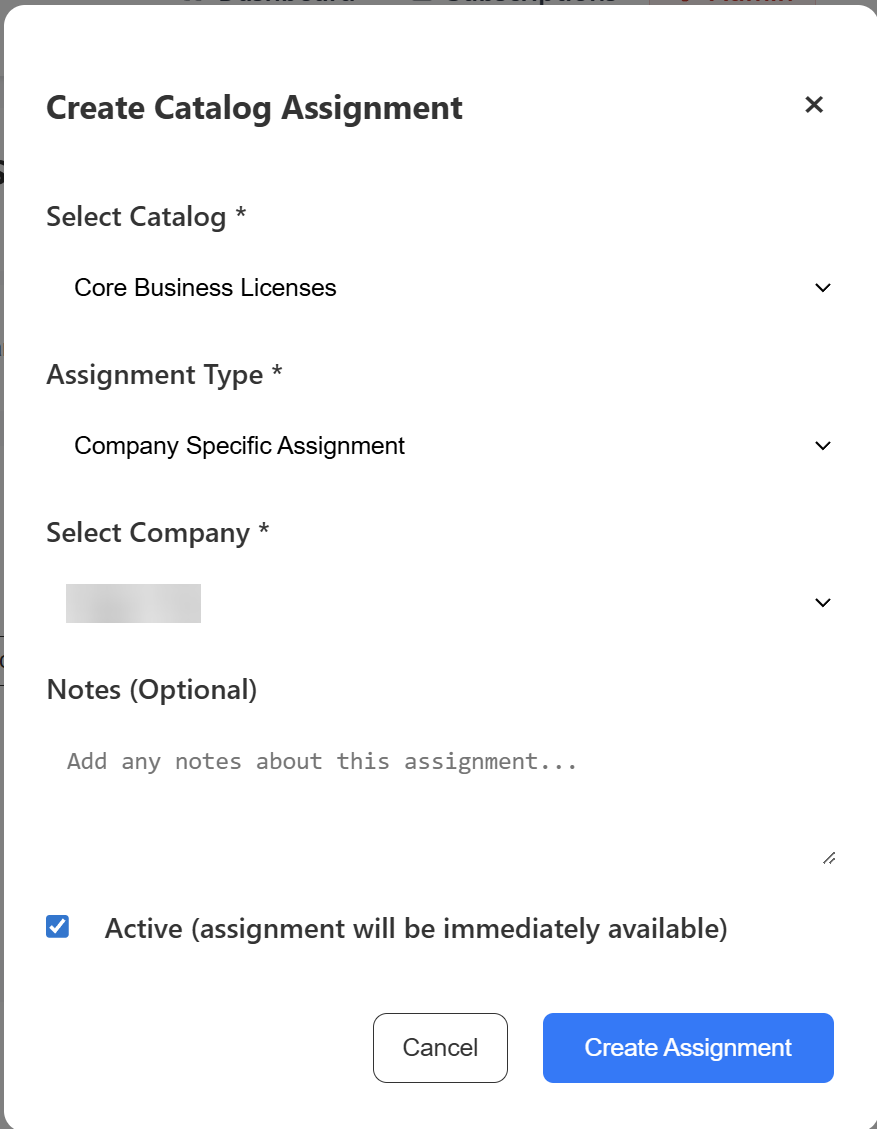
  4. Click on "Create Assignment"

    1. Select the Catalog

    2. Select Company assignment type

    3. Select the company to assign it to

    4. Click Create Assignment

  5. This will now be assigned to the client

    • Related Articles

    • End User Portal - Creating a Catalog

      With the end user portal you can provide the options for your clients to order products. Catalogs allow you to specify what products and commitment periods they have access to order. You can create your own custom catalogs to apply to your clients ...
    • End User Portal Overview

      This guide takes you through the functionality of the End User Portal. This portal allows you to manage your Microsoft licenses via self service. You can currently perform the following tasks Link multiple tenants to a user Log in as an MSP user and ...
    • End User Portal - User Guide

      This guide will show you how to use the Self Service End User Portal if you have been provided access to it. TABLE OF CONTENTS Overview Role Permissions Subscription Management Managing a Subscription Enable/Disable Auto-renew Ordering New ...