End User Portal Overview
This guide takes you through the functionality of the End User Portal.
This portal allows you to manage your Microsoft licenses via self service.
You can currently perform the following tasks
- Link multiple tenants to a user
- Log in as an MSP user and see all your added companies
- View all of your current subscriptions
- Edit quantities for the subscriptions
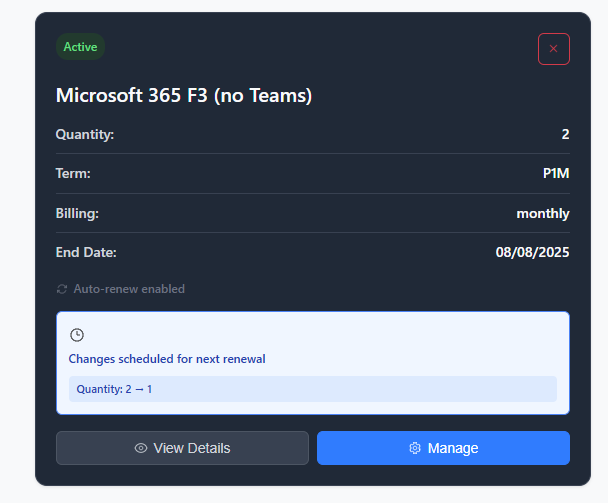
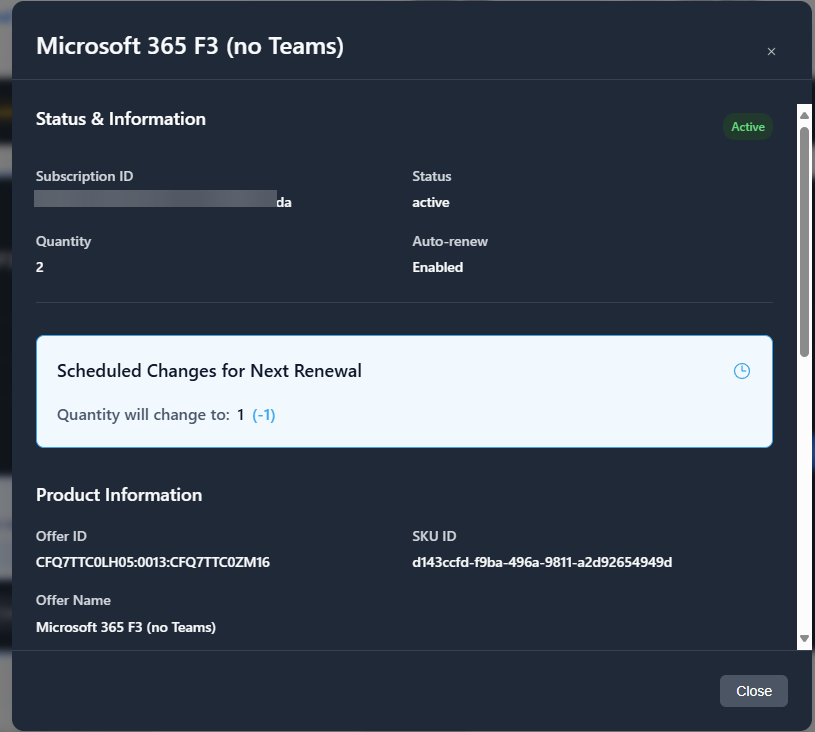
- Schedule the change of quantity for the next subscription renewal
- Enable/Disable auto renew
- Cancel a subscription
- Create and manage catalogs of products available to order.
- Order new subscriptions
- Checks to prevent ordering a duplicate subscription
- Acceptance logged on adding each item and cart check out
Coming soon: Acceptance logs along side ordering
End User Roles
When you add an end user to have access to a company, you can pick from the following roles:
- View:
- View all subscriptions and their information
- Can not make any changes
- Modify:
- View all subscriptions and their information
- Can change subscription quantities
- Admin:
- View all subscriptions and their information
- Can change subscription quantities
- Can cancel subscriptions
- Can order new subscriptions
- Can view users that have access to the end user portal
- Future feature: Add and modify users that have access to the portal
Client Side Overview
Partner Catalog Overview
Useful Links
End User Portal User Guide: https://support.sync365.app/portal/en/kb/articles/end-user-portal-user-guide
Creating a catalog: https://support.sync365.app/portal/en/kb/articles/end-user-portal-creating-a-catalog
Screenshots:
Dashboard

Subscription Management

Indicator For Scheduled Changes