End User Portal - User Guide
This guide will show you how to use the Self Service End User Portal if you have been provided access to it.
TABLE OF CONTENTS
Overview
You can log into the End User Portal by browsing tohttps://portal.s365l.com
- Click Sign in then Sign in with Microsoft
- Log in with your Microsoft account that has access to the portal
You will be greeted with a dashboard overview of your subscriptions.
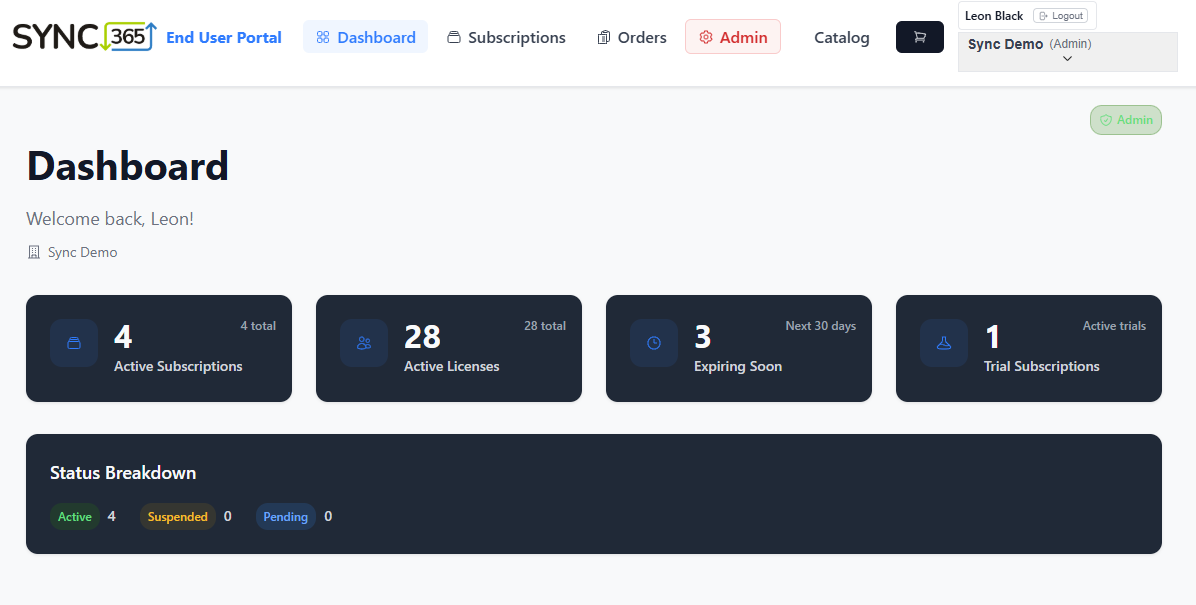
The Dashboard gives you a quick view of:
- Number of active subscriptions
- Total of active licenses
- Subscriptions expiring soon
- Active trial subscriptions
Role Permissions
- View:
- View all subscriptions and their information
- Can not make any changes
- Modify:
- View all subscriptions and their information
- Can change subscription quantities
- Admin:
- View all subscriptions and their information
- Can change subscription quantities
- Can turn auto-renew on and off
- Can cancel subscriptions
- Can order new subscriptions
- Can view users that have access to the end user portal
Subscription Management
Click on the Subscriptions menu to access all of your subscriptions.
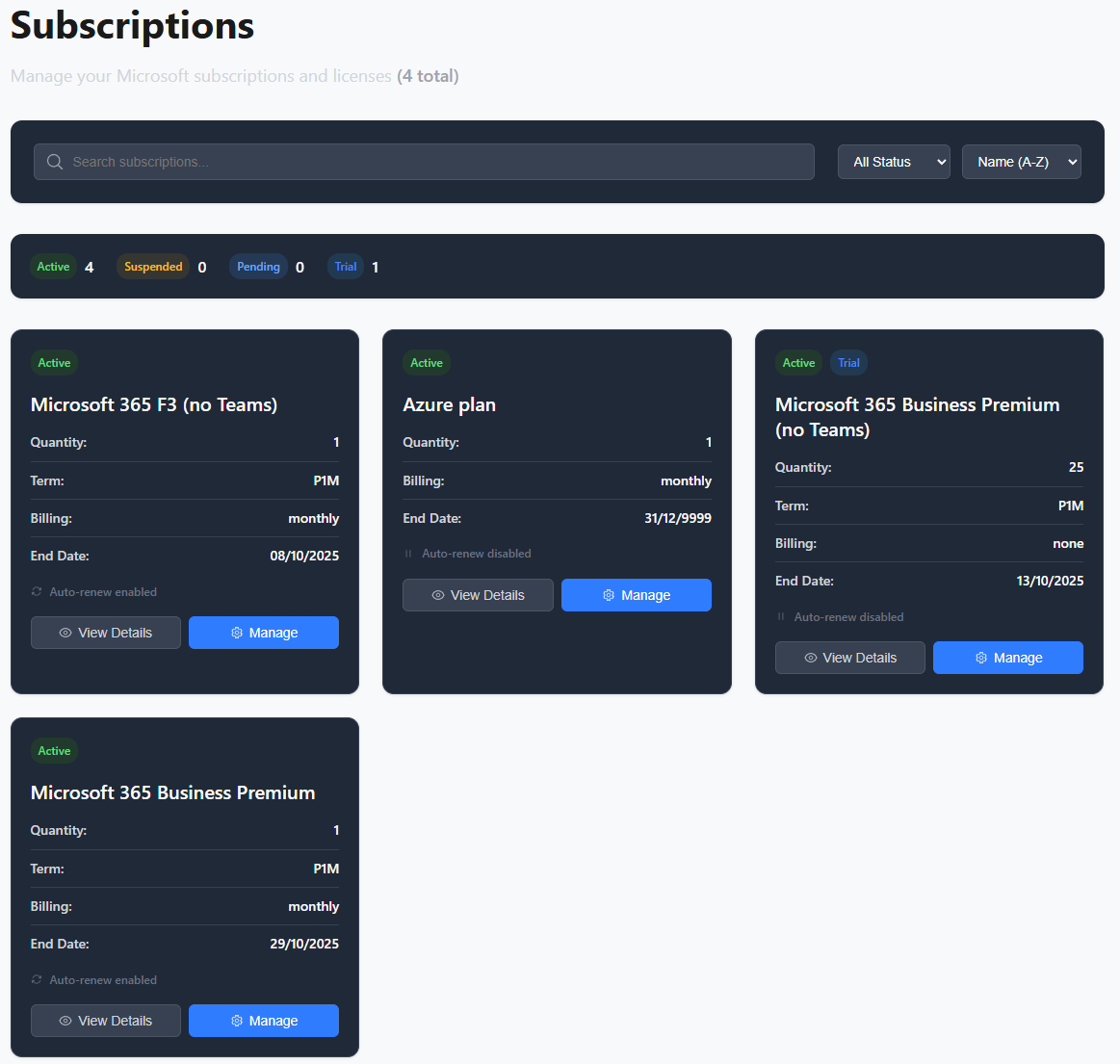
Here you will see an overview of all your subscriptions.
- Click View Details to see detailed information about the subscriptions
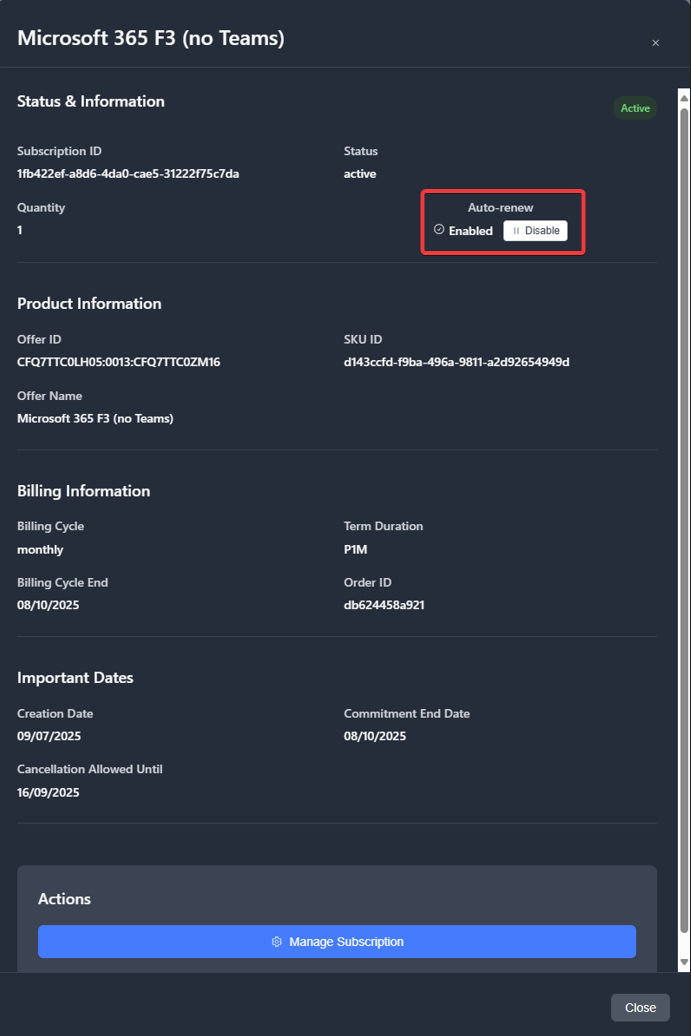
- Here you can enable or disable auto renew
- Click Manage to manage the subscription
- Here you can change quantities and cancel the subscription (when available)
If there are any scheduled changes for a subscription, it will display on the subscription:
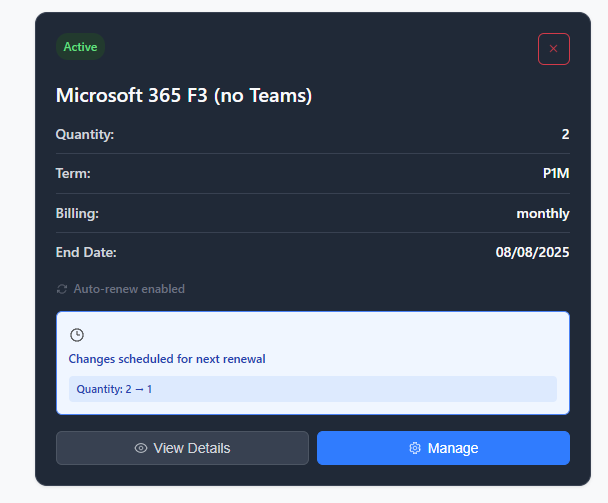
Managing a Subscription
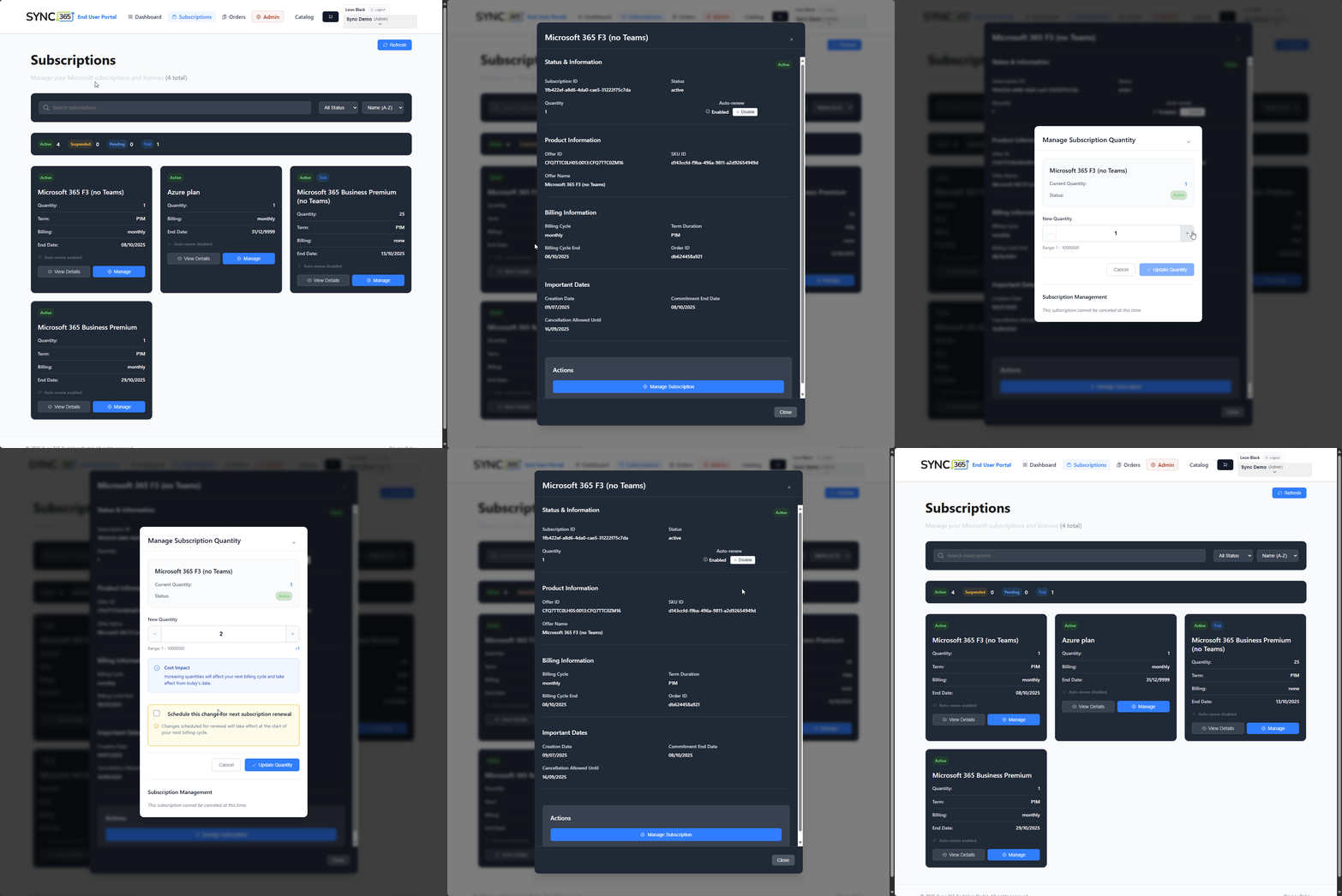
You can click on Manage from the subscription box or from the view details box to access the subscription management
This allows you to change the quantity of the subscription:
- Quantity can only be reduced during the subscription renewal period, if it is not currently in this period the portal will give you the option to schedule the change for the next period
- Quantity increase can be done immediately, or you can schedule it to increase on the next subscription renewal
Enable/Disable Auto-renew
To enable or disable Auto-renew you need to:
- View the subscription details
- Click enable or disable on the auto-renew
- Confirm the change
Ordering New Subscriptions
If you have been provided access to order new subscriptions, you will have a Catalog menu available.
Click on Catalog to load the product catalog that you have access to.
You will see a page with the various products that you have access to order
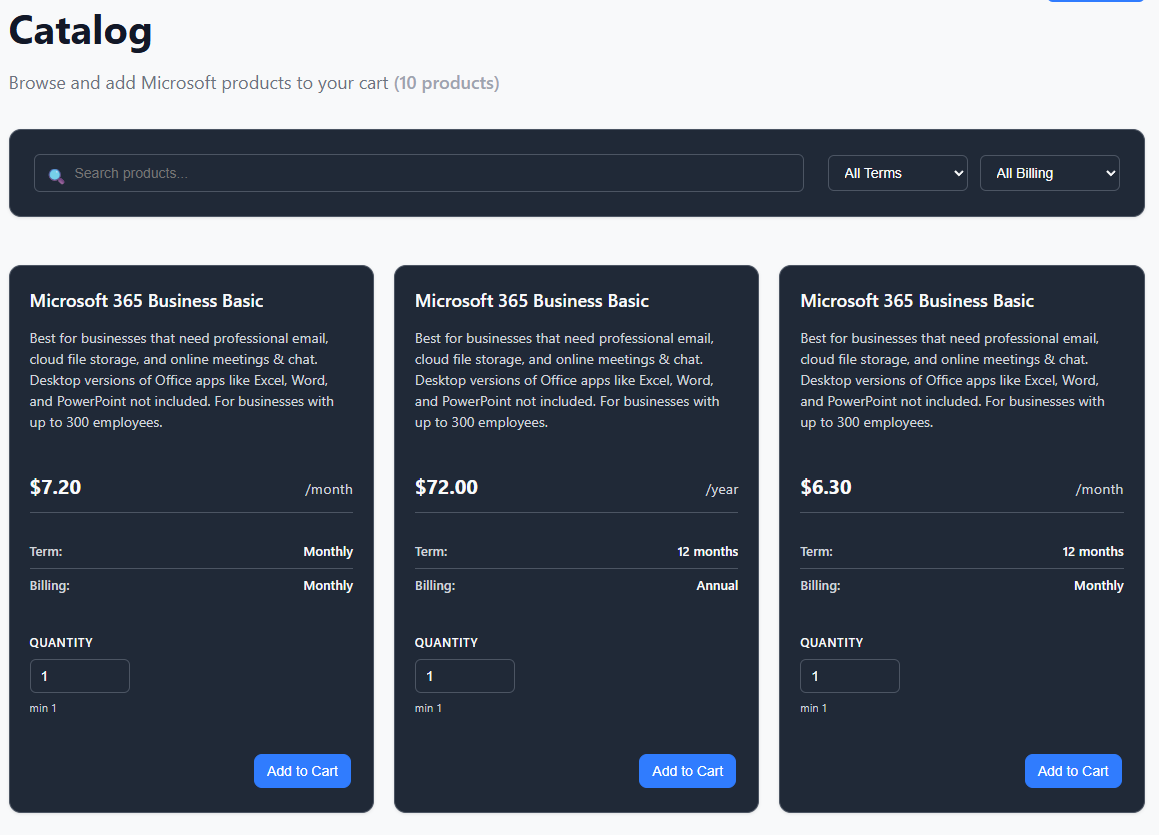
To order a product:
- Enter the quantity you would like to order
- Click Add to Cart
- You will be prompted to confirm your authorization
- If this product matches an existing subscription you have, we will notify you and recommend you adjust the quantity on the existing subscription instead
When you have added the products you want to order
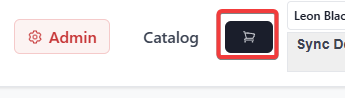
- Click on the cart in the top right corner
- Click Review Cart on the slide out window
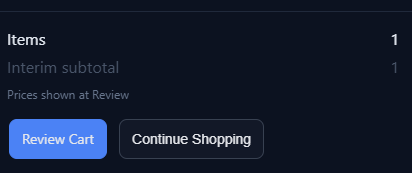
- Here you can confirm the items are correct
- Ensure you have selected a product with the expected Billing cycle and term I.e. Monthly/Monthly
- Click Proceed to Checkout when ready
- If there are any annual term products in your account, there will be an additional acceptance requiring name and email address to confirm the annual product order
- The system will now process the order with Microsoft, please wait for the page to finish loading
- Within 5 minutes, your subscription should be available
Order History
If you click on the Orders menu, you will be able to see the order history that have been placed in the End User Portal, with details of who ordered it, what date and what products