End User Portal - Creating a Catalog
With the end user portal you can provide the options for your clients to order products.
Catalogs allow you to specify what products and commitment periods they have access to order.
- You can create your own custom catalogs to apply to your clients
- You can link a product to one of your billing profiles in Sync 365 to provide a custom price for that item
- You can create restricted catalogs with only specific products and commitment types for your clients to order
This guide shows you how you can set up and assign catalogs to your end user clients.
Requirements
- You must have access as the CSP to the end user portal
- You must have the permission for being CSP Admin to access catalog management
Video Overview
- Log into the end user portal with your email address -https://portal.s365l.com
- Click on the Admin button
- Under the partner administration header click on Manage Catalogs
- This will show you any current catalogs you have
- Click create catalog to create a new one
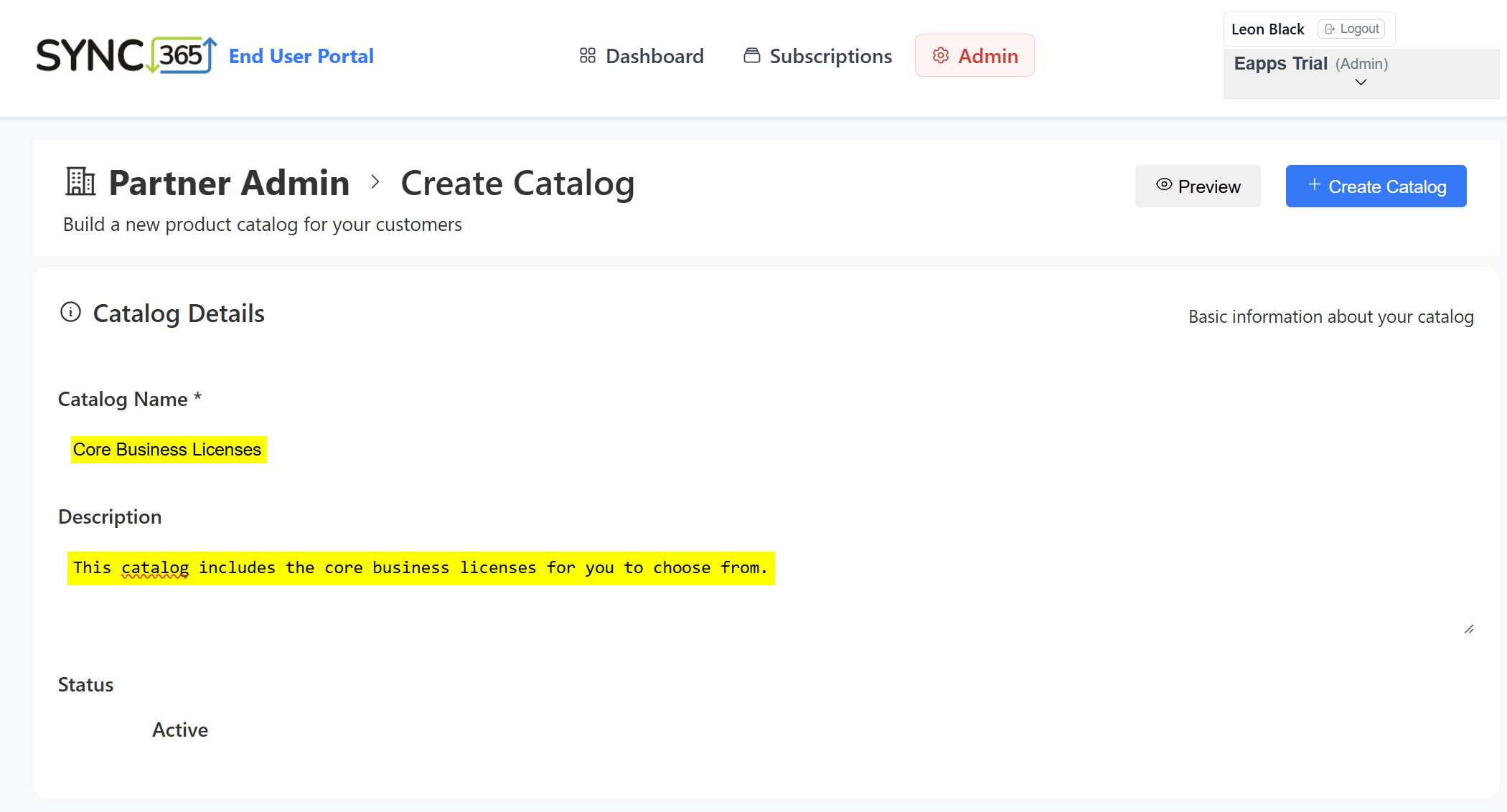
- Enter in a name and description for the catalog
- Scroll down and click on "Add Products" to start selecting the products you would like in the catalog
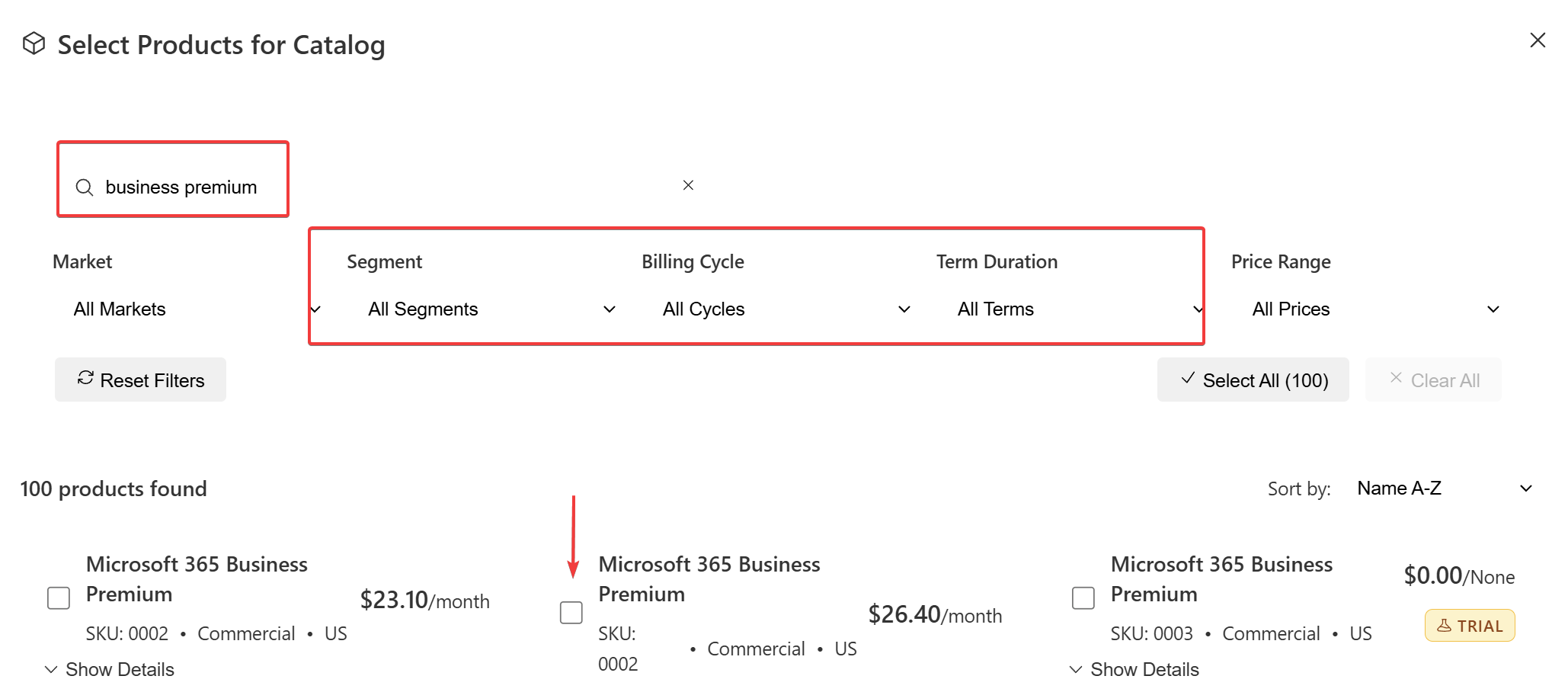
- Here you can search for product names and filter to certain billing cycles and term durations.
- Select the products you would like to add to the catalog. You can also use the select all button to add everything that is showing from your filters.
- You can see in the products if they are a P1M, P1Y with monthly billing or P1Y with yearly billing.
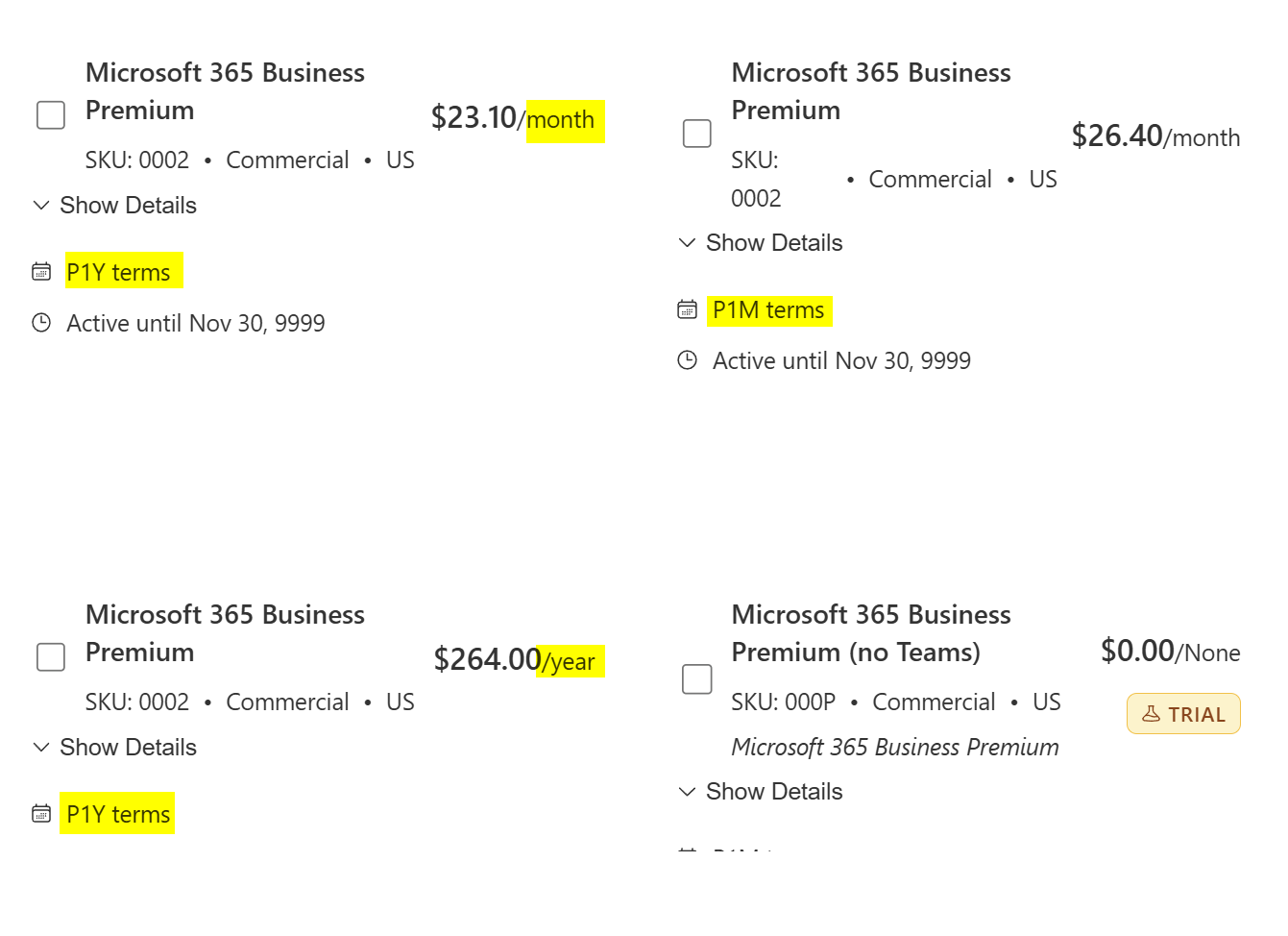
- You can see in the products if they are a P1M, P1Y with monthly billing or P1Y with yearly billing.
- Click on Add Products to add the selected products to the catalog
- You will see the products you have selected along with a preview of the catalog
- You can override the ERP (Enterprise Retail price) with a billing profile from your Sync 365. This allows you to assign specific pricing that matches your billing profile set up.
- This price will stay in sync with any changes made to the billing profile it is connected to
- Close the add products window and click Create Catalog to create the catalog
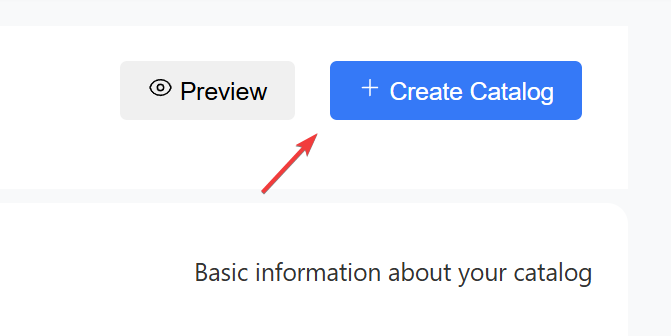
- The catalog will now be created and available to assign to your clients.
See how to Assign a catalog here